

When trading futures, choosing the right order type can help you place orders more effectively based on market conditions. Different order types vary in execution method, price control, and suitable use cases. Understanding their functions and features can help improve trading efficiency and order accuracy.
LBank Futures currently supports four common order types: Market Order, Limit Order, Trigger Order, and Post-Only Order. This article explains the basic concepts, suitable scenarios, and operation methods of each order type, helping you quickly understand the differences between them and choose the one that best fits your trading needs.
Please note: when using a Limit Order or Trigger Order, you can set different order time-in-force options based on your trading needs.
Market Order & Limit Order
Market Order and Limit Order are the two most commonly used order types in futures trading. The main difference between them is that a Market Order prioritizes immediate execution, while a Limit Order focuses more on price control.
Key Differences
Market Order Basics
A Market Order is an order type that does not require you to specify an order price. Instead, the system will prioritize execution at the best available market price. If you want to open or close a position as quickly as possible, a Market Order may be a suitable choice. Compared with a Limit Order, a Market Order focuses more on execution speed. However, the final execution price is affected by market conditions, order book depth, and liquidity, so the actual execution price may differ from the latest price shown at the time of order placement.
Tips for Market Order
A Market Order is designed for fast execution and therefore does not guarantee the final execution price. When using a Market Order, please note the following risks:
-
When market liquidity is insufficient, the single order size is too large, or the market is highly volatile, the actual execution price may deviate significantly from the latest price.
-
If the system detects that the current quote may result in insufficient margin, the order may only be partially filled at the best available order book price, and the remaining unfilled portion will be automatically canceled.
-
During sharp market fluctuations, the bid-ask spread may widen significantly, and the best bid/ask price may differ greatly from the mark price; to control trading risk, a Market Order may fail to execute under certain circumstances.
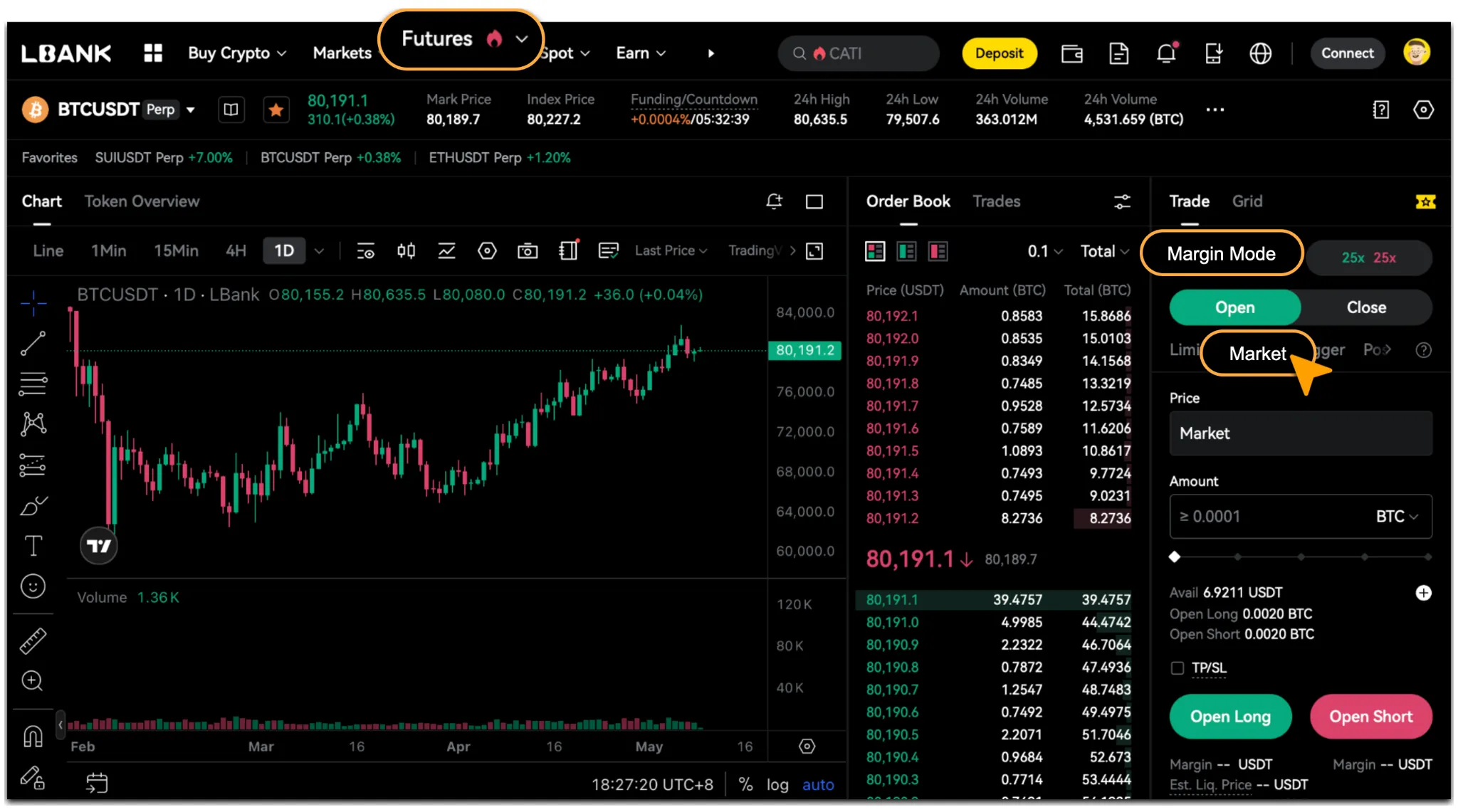
How to Use a Market Order
-
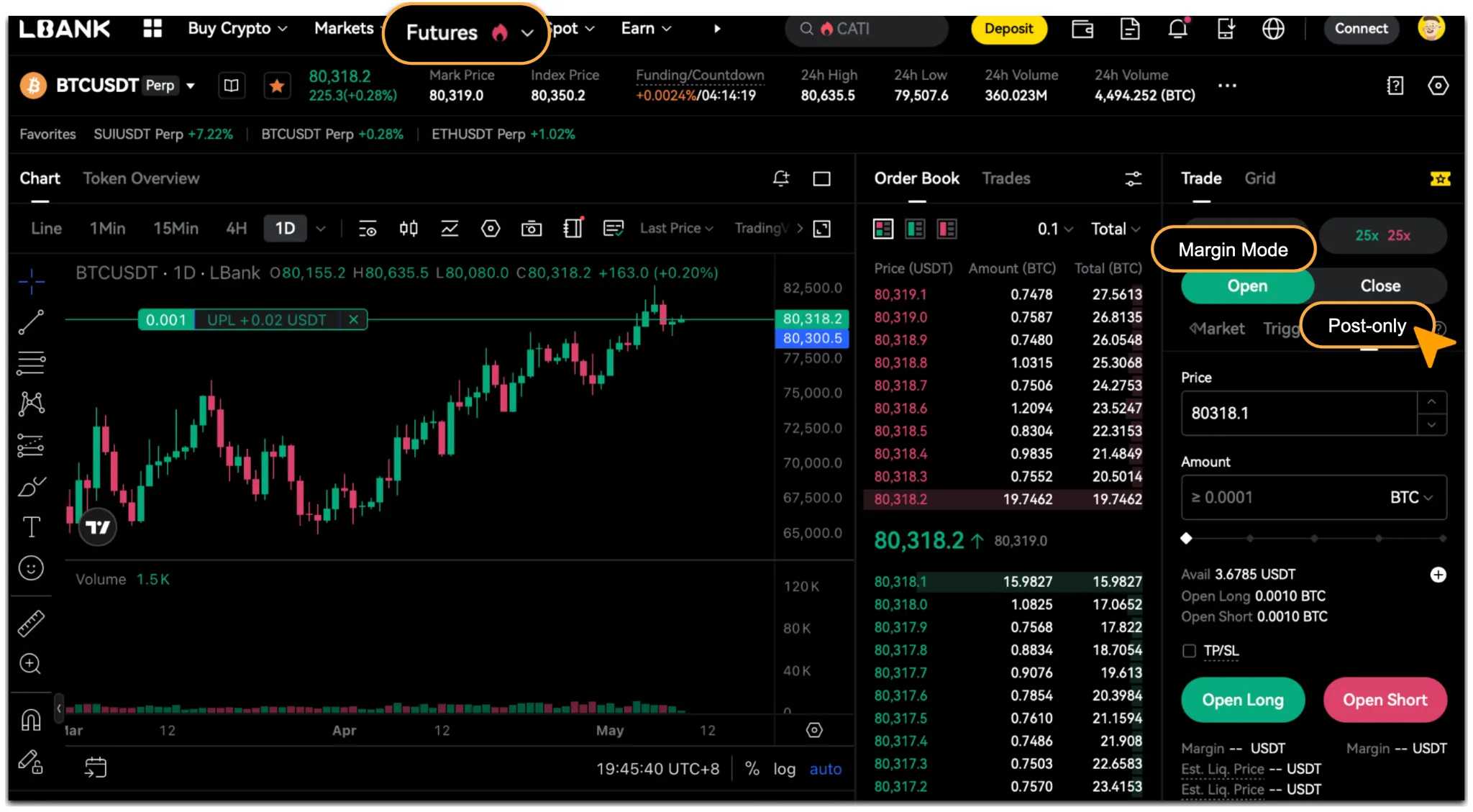
On the order page of your selected futures trading pair, confirm the「Margin Mode」and select「Market」.
-
Enter the order amount.
-
Click「Open Long」or「Open Short」to place an order.
Limit Order Basics
A Limit Order allows you to set a buy or sell price in advance. The system will only attempt to match the order when the market price reaches your specified price or a better price. A Limit Order does not guarantee execution, but it helps you control the order price more precisely.
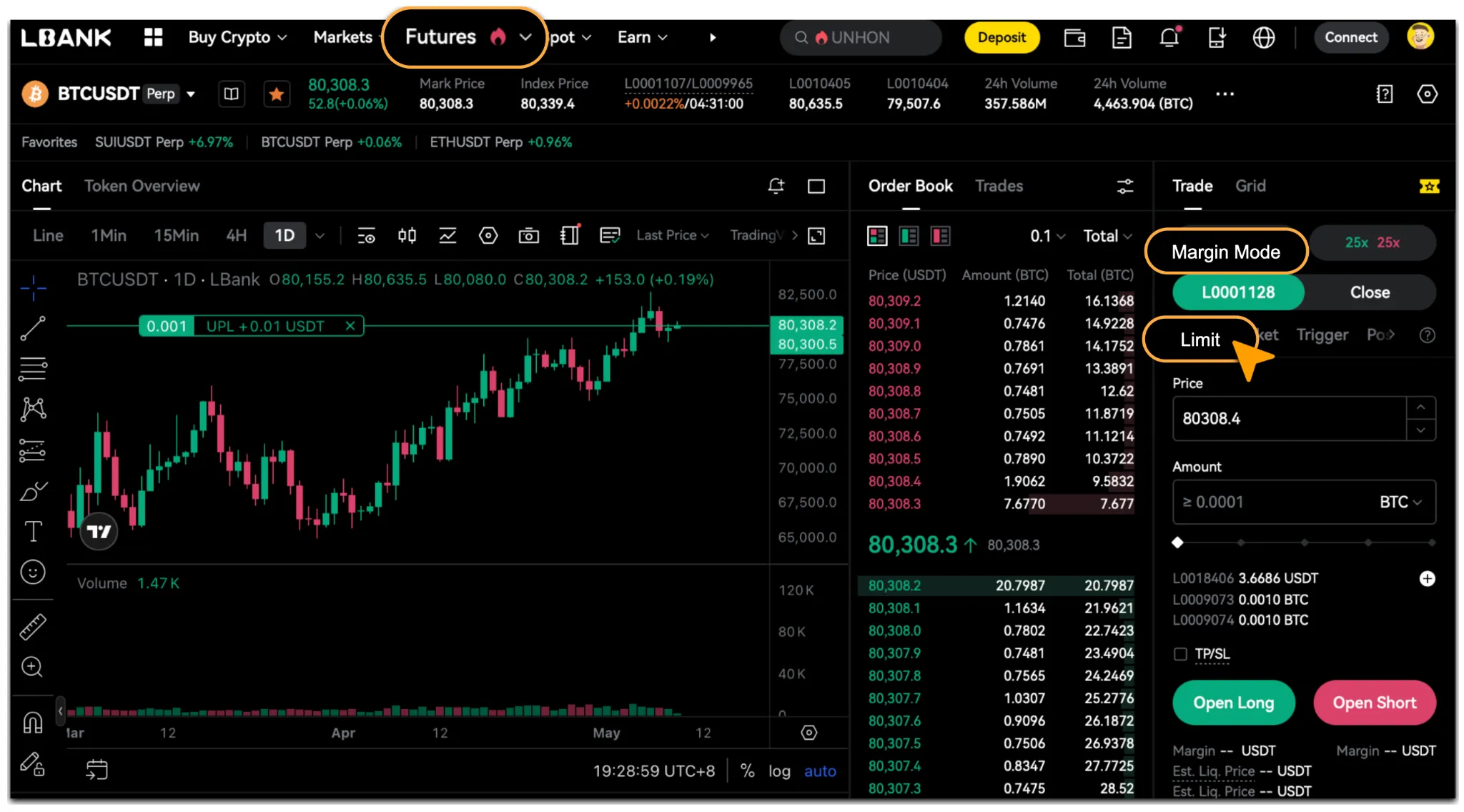
How to Use a Limit Order
-
On the order page of your selected futures trading pair, confirm the「Margin Mode」and select「Limit」.
-
Enter the「Price」and「Amount」
-
Click「Open Long」or「Open Short」to place an order.
Trigger Order & Post-Only Order
In addition to Market Orders and Limit Orders, LBank Futures also supports Trigger Orders and Post-Only Orders to meet different trading strategy needs. These two order types are suitable for users who have specific requirements for order conditions or execution methods.
Key Differences
Trigger Order Basics
A Trigger Order allows you to set a trigger price in advance. When the market price reaches the trigger condition, the system will submit the corresponding Market Order or Limit Order according to your preset settings. This order type is commonly used for take-profit, stop-loss, or automatic position opening and closing under specific market conditions.
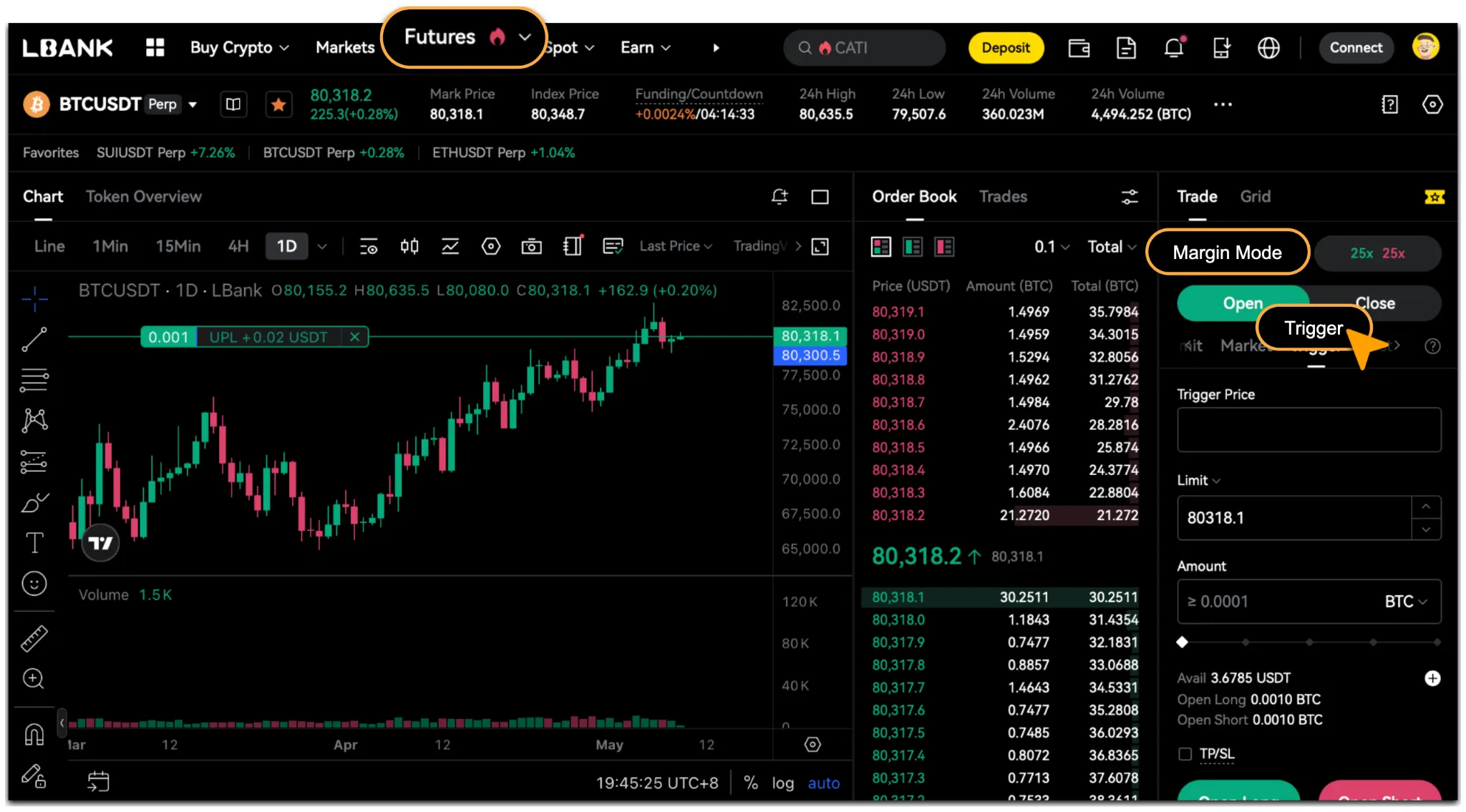
How to Use a Trigger Order
-
On the order page of your selected futures trading pair, confirm the「Margin Mode」 and select「Trigger」order.
-
Enter the「Trigger Price」,「Order Price」, and「Amount」.
-
Click「Open Long」or「Open Short」to place an order.
Post-Only Order Basics
A Post-Only Order is an order type that will only remain in the order book as a maker order after submission. If the order would immediately match with an existing market order, the system will automatically cancel it. This type of order is mainly used to provide market liquidity.
In simple terms, the core feature of a Post-Only Order is post only, not liquidity. If you want your order to enter the order book instead of being executed immediately, you can choose Post-Only Order.
How to Use a Post-Only Order
-
On the order page of your selected futures trading pair, confirm the「Margin Mode」and select「Post-Only」Order.
-
Enter the「Price」and「Amount」.
-
Click「Open Long」or「Open Short」to place an order.
Trading Tips
If you are new to futures trading, it is recommended that you first understand the basic differences between order types and then choose the most suitable one based on your trading needs.
-
If you prioritize execution speed, consider using a Market Order.
-
If you want greater control over the execution price, consider using a Limit Order.
-
If you want to place an order automatically when a specific price is reached, consider using a Trigger Order.
-
If you want your order to remain in the order book only, consider using a Post-Only Order.
Reminder
When using a Market Order, it is recommended to consider current market liquidity and reasonably control leverage and single-order size. During periods of sharp market volatility, consider using Limit Orders or building positions in batches to reduce slippage risk and market impact. Different order types are suitable for different trading scenarios, and there is no absolute advantage or disadvantage between them. Becoming familiar with the functions and differences of Market Orders, Limit Orders, Trigger Orders, and Post-Only Orders can help you arrange your trading strategies more effectively and improve your overall trading efficiency.