


 Transférer
LBank now supports self-service reset for certain account security settings, including Email and Google Authenticator. You can complete the process directly in the App or on the web without contacting Customer Service.
Please note that, to protect your account and assets, some functions will be restricted for 24 hours after you successfully update your Email or Google Authenticator.
Supported Security Settings
The following security settings support self-service reset:
Before You Start
-
Whether you can use the self-service reset feature depends on your KYC status and the number of security settings currently linked to your account.
-
If your current security setting is unavailable, the system will guide you to complete verification using other linked security settings. Please follow the instructions shown on the page.
How to Update Your Security Setting
📌 For the safety of your assets, you will not be able to withdraw or perform fiat transactions within 24 hours after changing your Email, Google Authenticator, Phone Number, or Passkey.
If you close the pop-up window during the process, the system will display a confirmation message asking whether you want to abandon or continue the setup. If you choose to abandon it, your changes will not be saved.
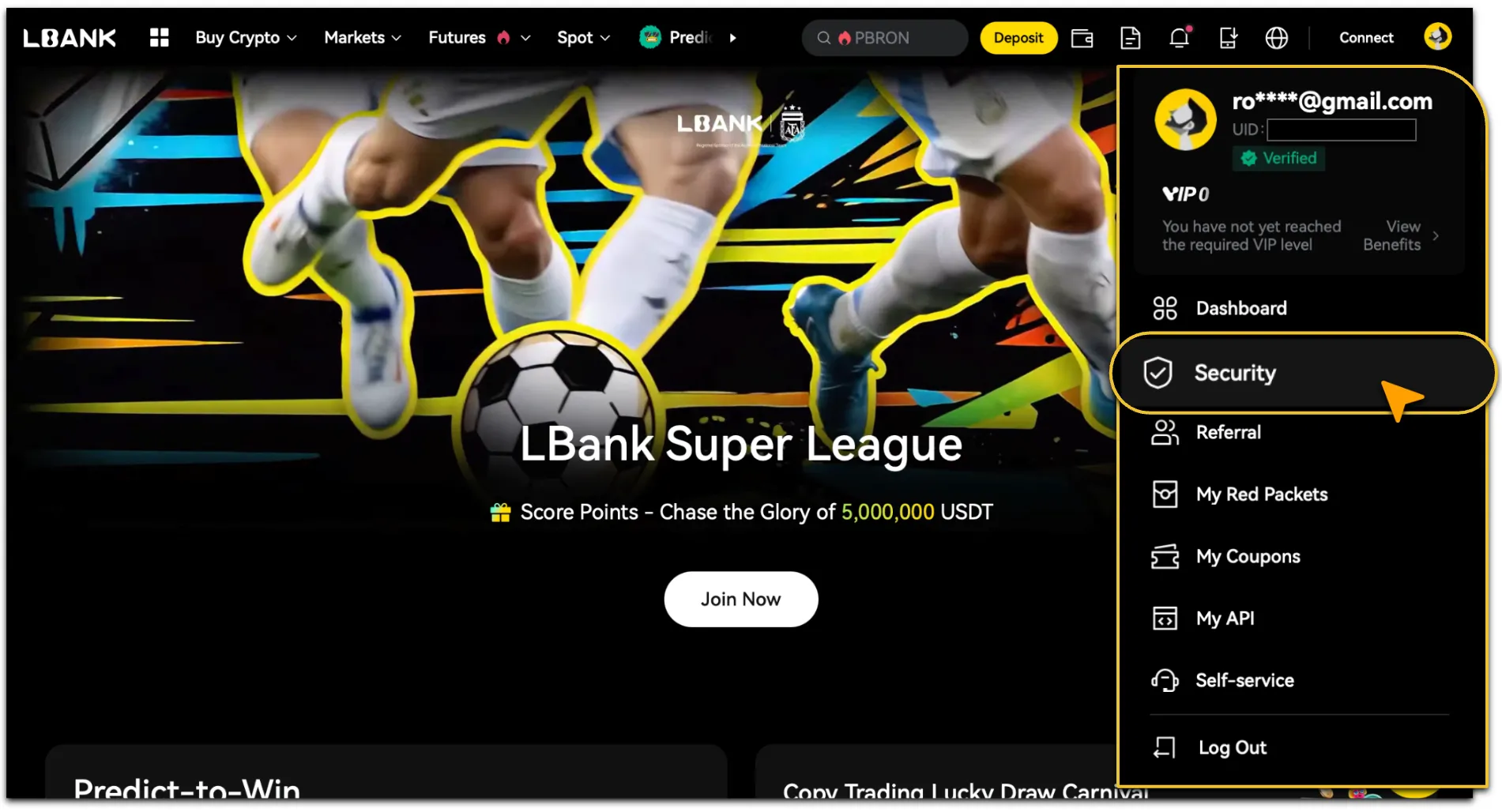
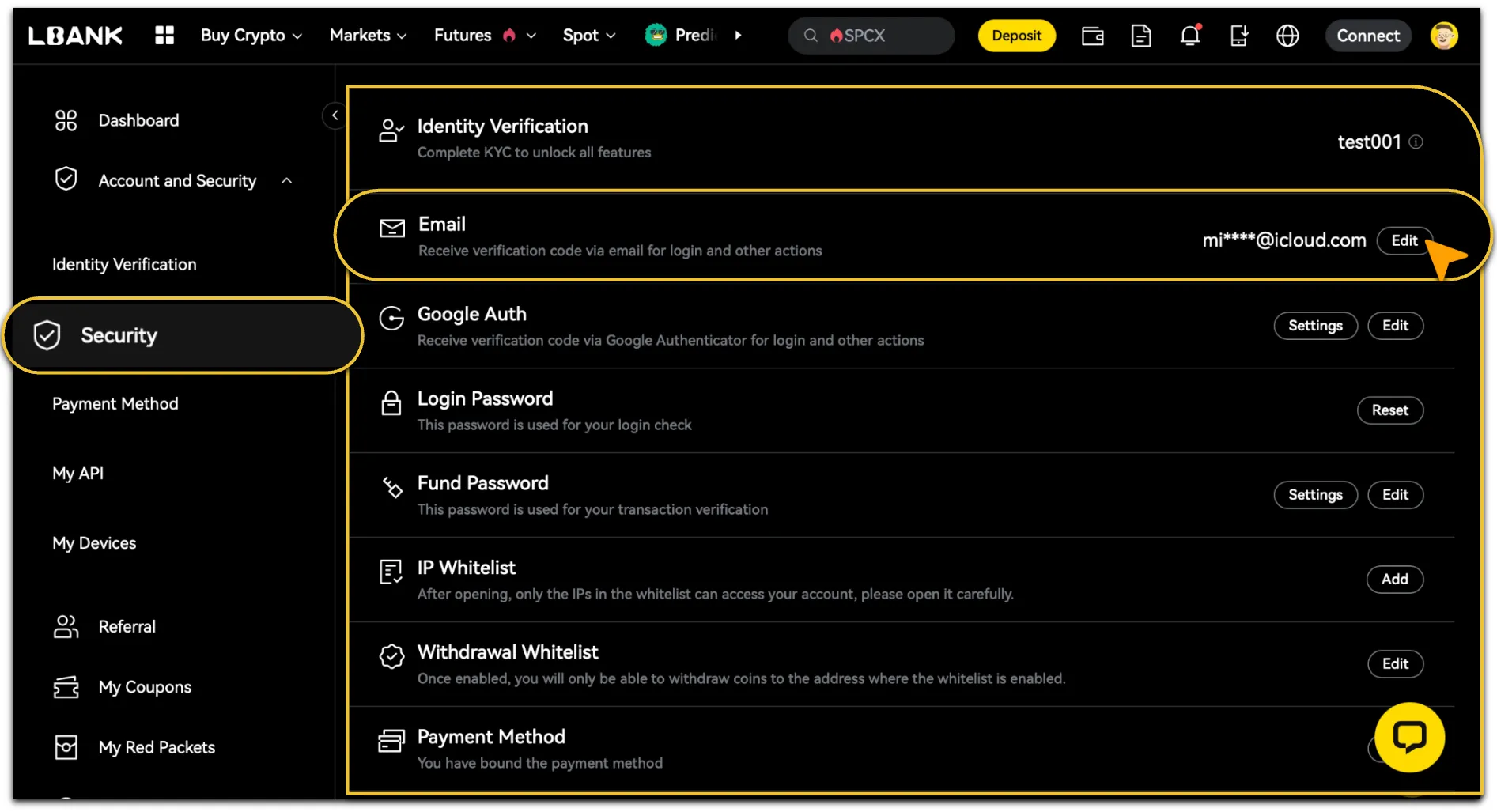
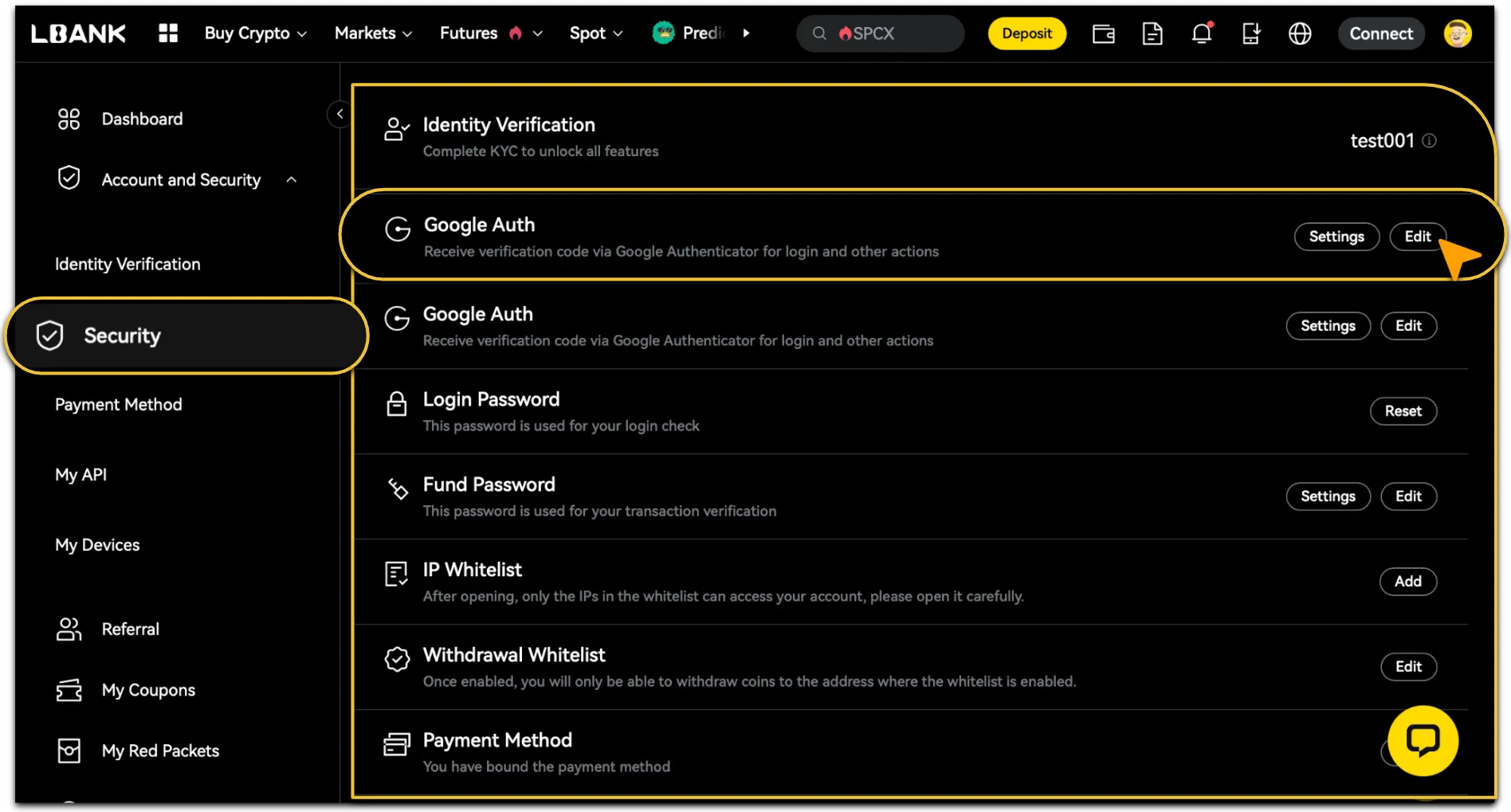
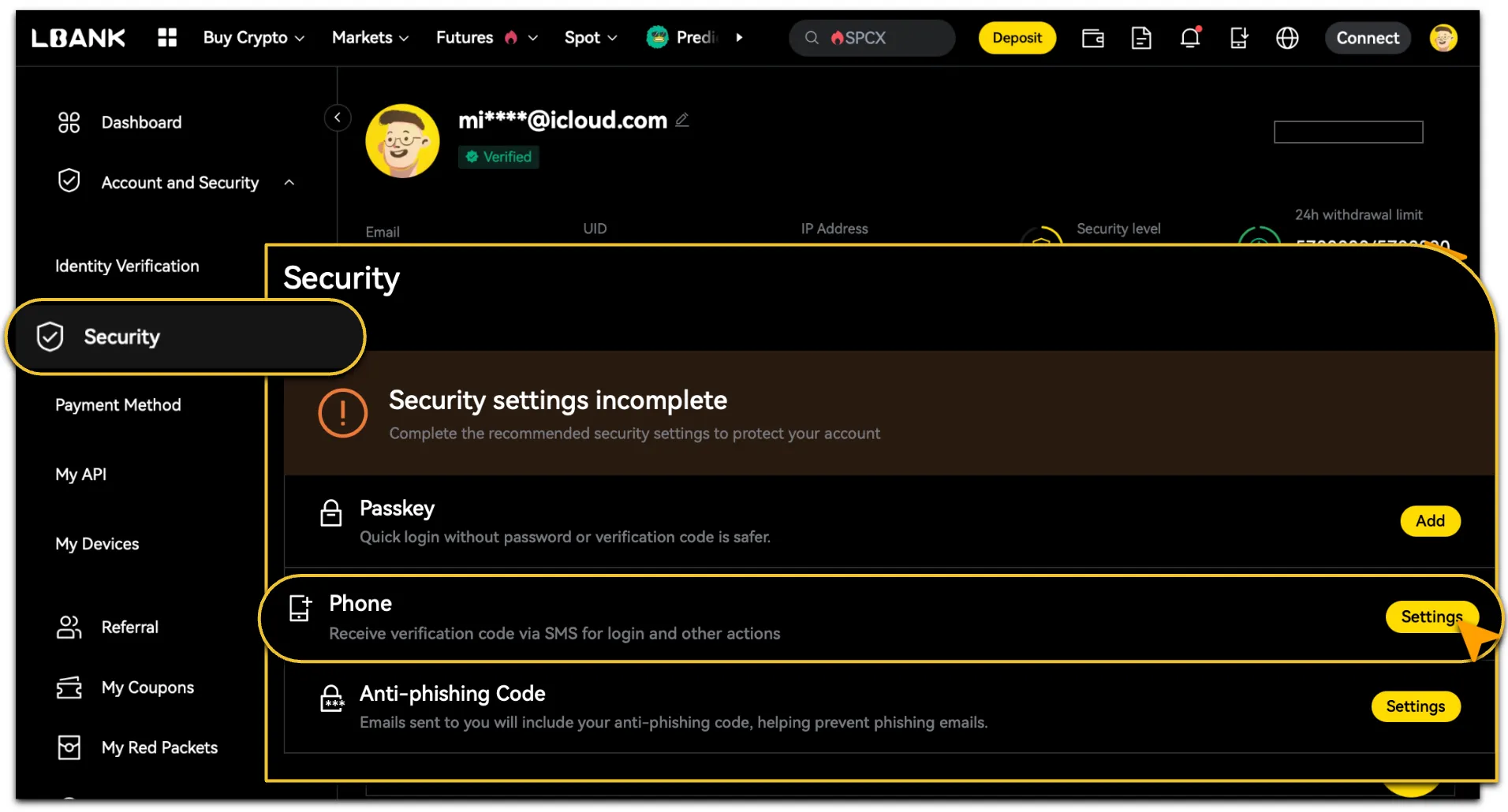
Step 1: Select the Security Setting to Reset
App
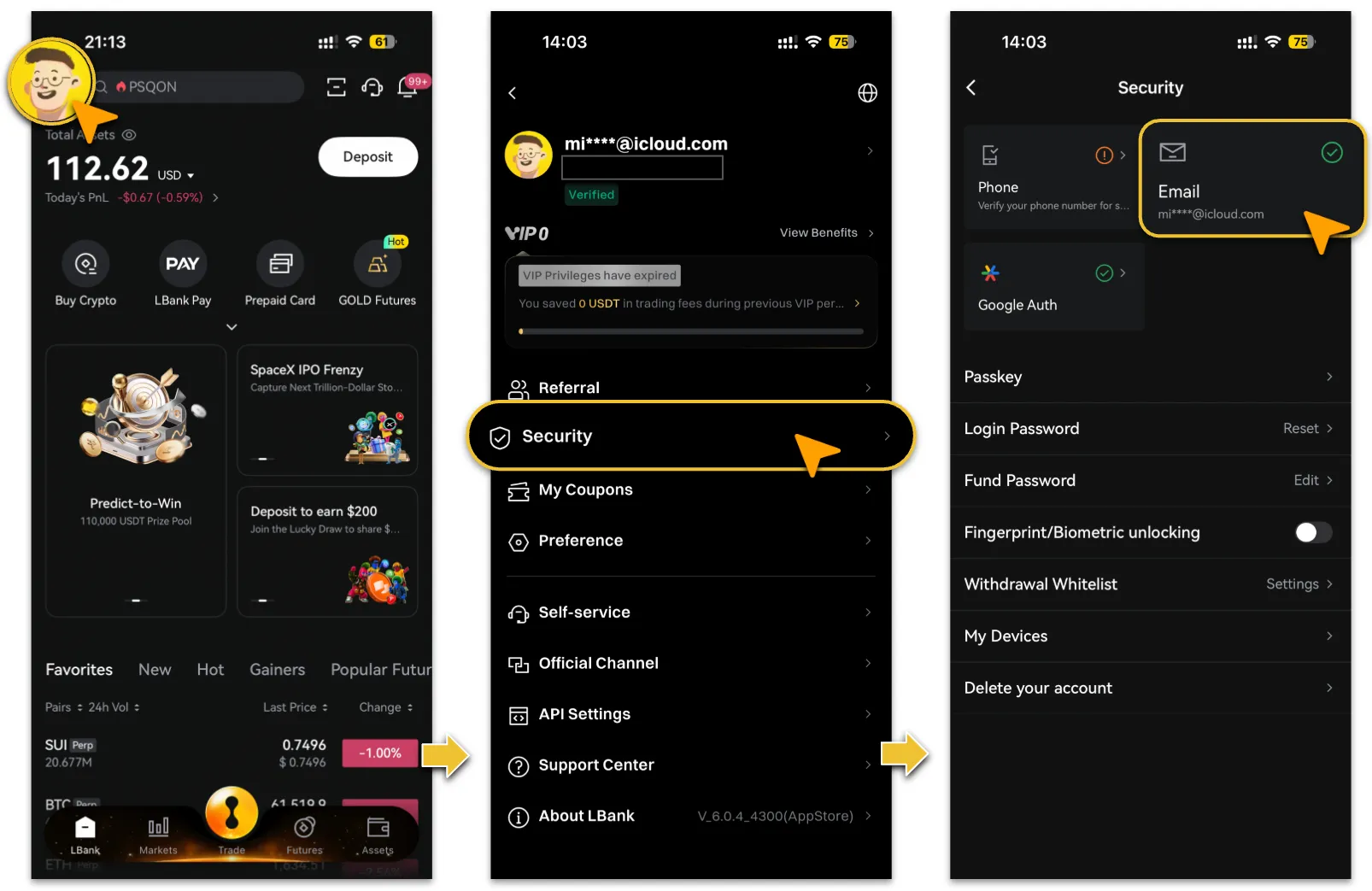
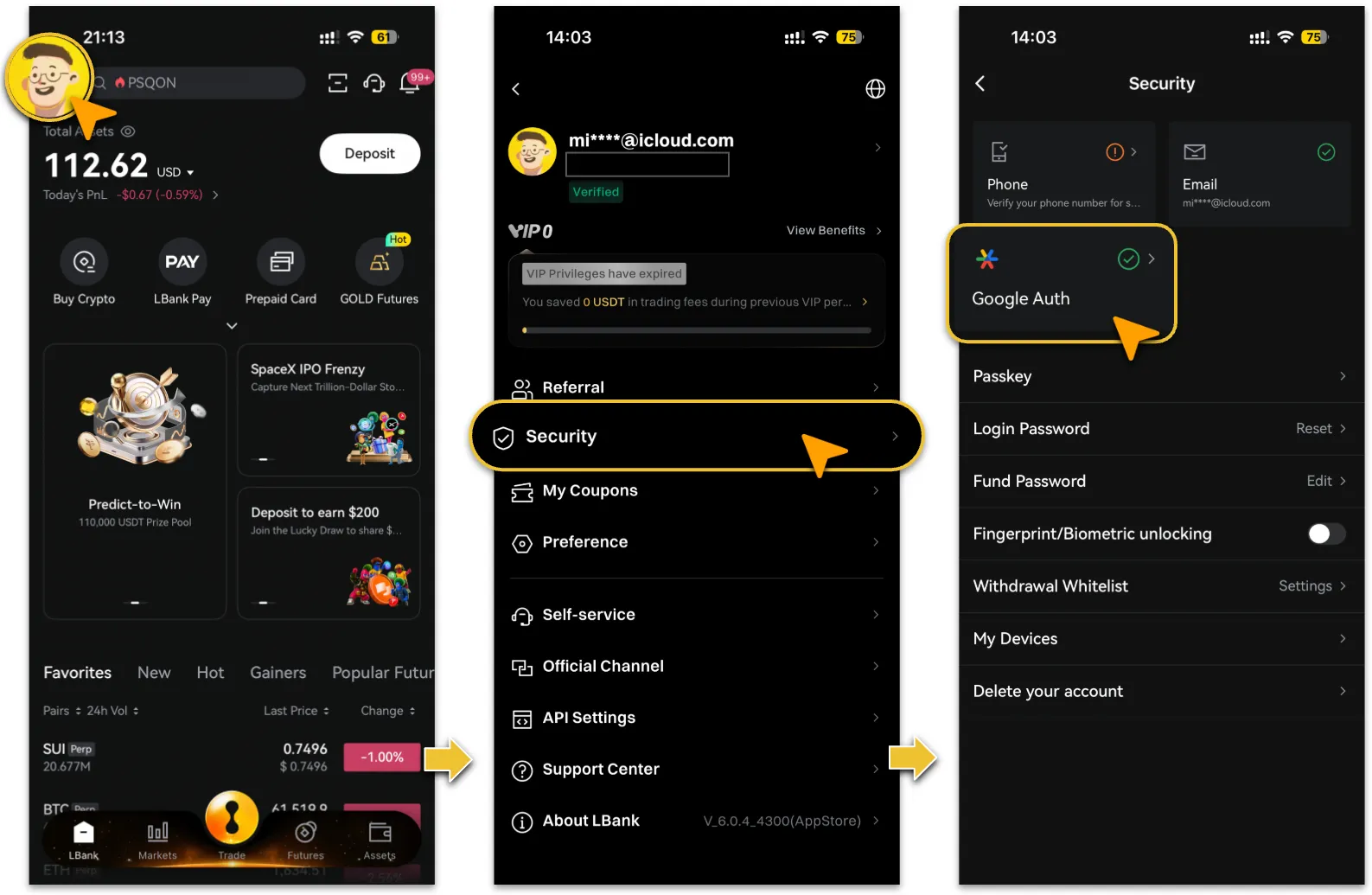
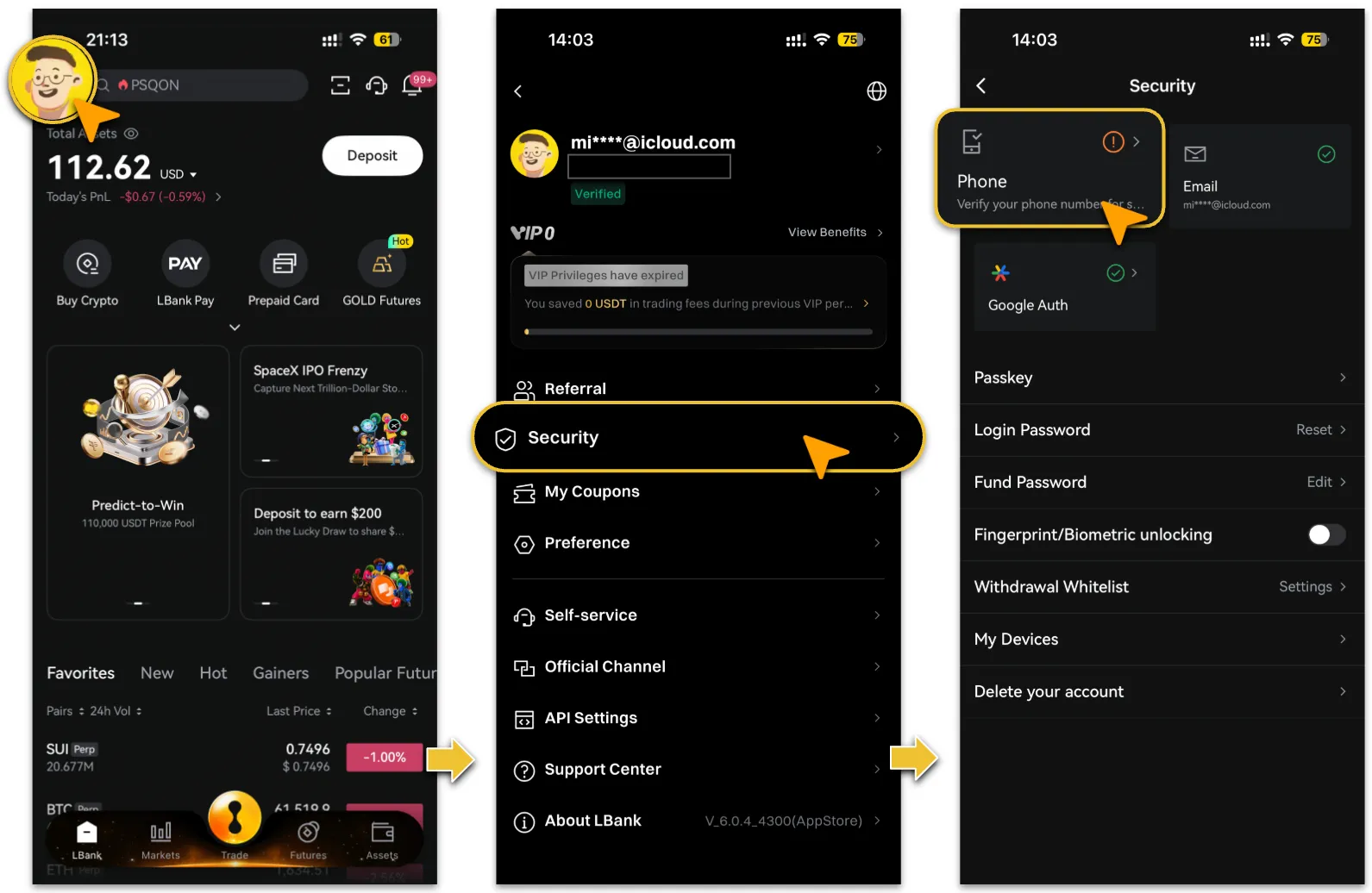
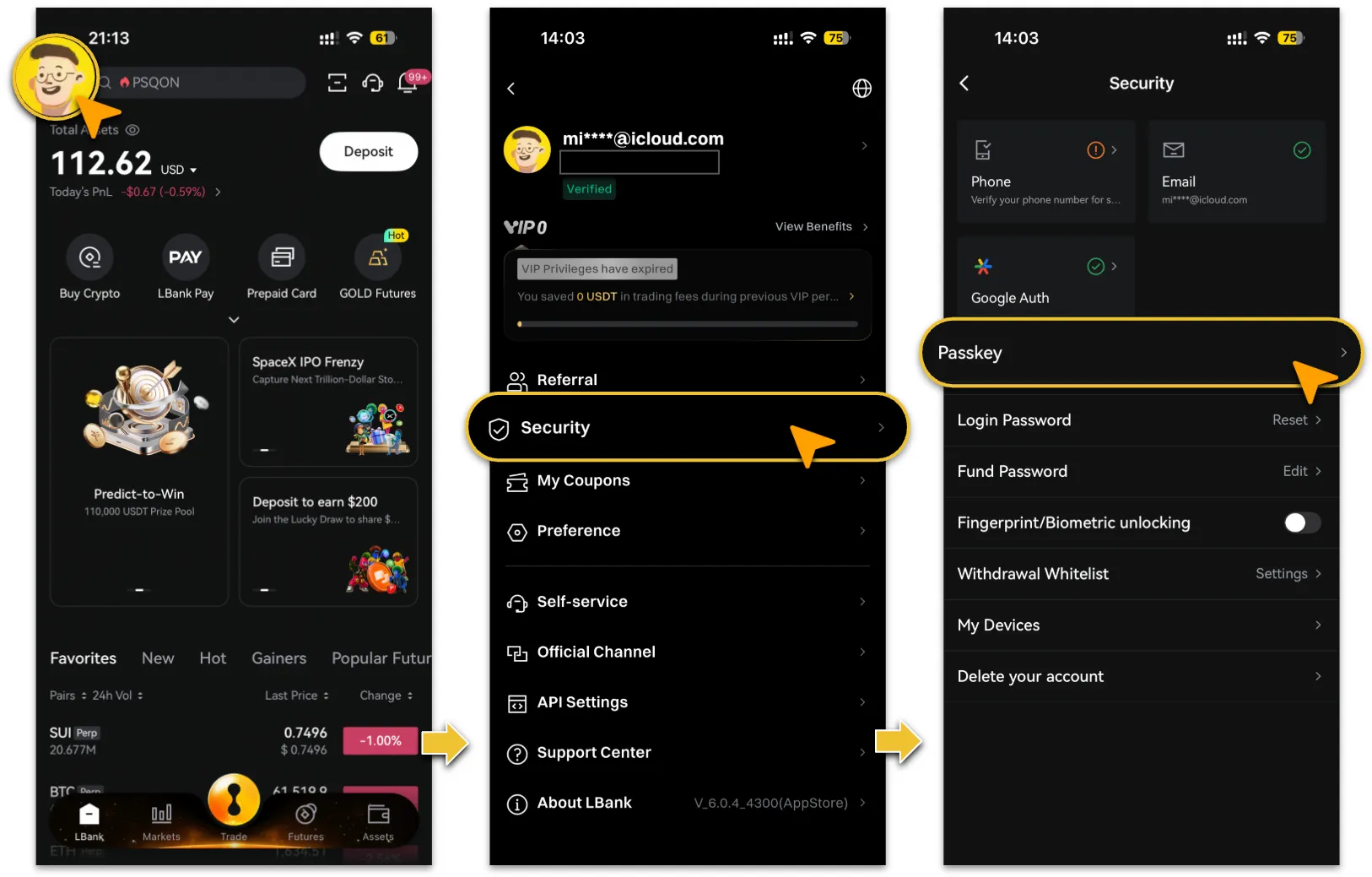
Web
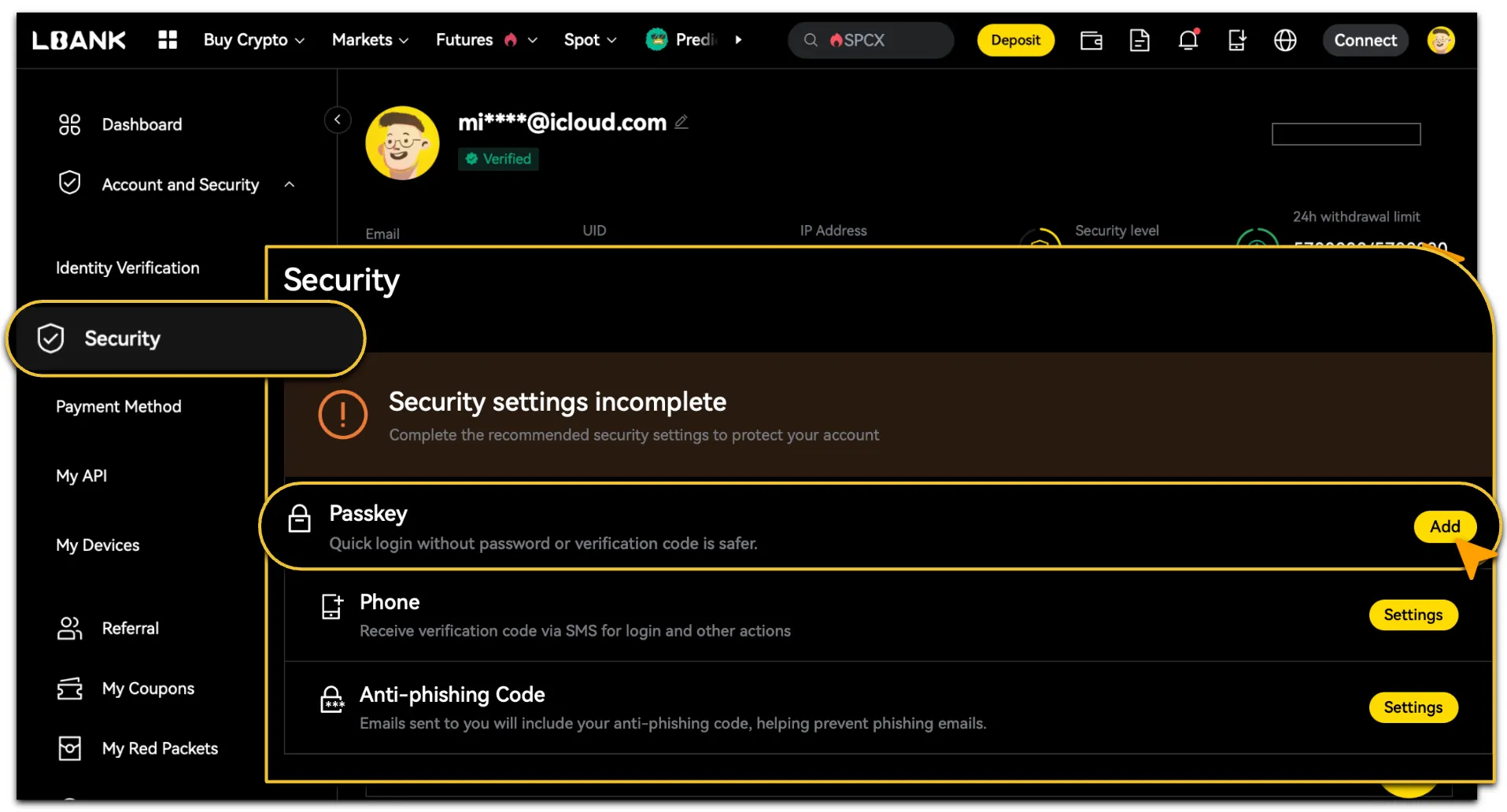
Step 2: Review the Security Reminder
-
The system will remind you that some functions, including withdrawals and fiat transactions, will be unavailable for 24 hours after the security setting is successfully changed.
-
After confirming the reminder, click「Confirm/Continue」to proceed.
Step 3: Complete Identity Verification
-
If you have completed KYC, you must complete facial verification to confirm your identity. You may retry up to 3 times per day. If all 3 attempts fail on the same day, please try again the next day. If the issue persists, please contact Customer Service.
-
If you have not completed KYC and have linked 2 or more security settings, the system will ask whether your currently linked security setting is still available.
-
If the current security setting is still available, complete verification using the current security setting and one additional linked security setting. 
-
If the current security setting is no longer available, the system will guide you to complete verification using other linked security settings.
-
If there are not enough available security settings for verification, you will not be able to complete the self-service reset. Please submit a request through the appeal form.
Step 4: Bind New Information
-
Enter your new「Email」address or「Phone」number, or follow the on-screen instructions to bind a new「Google Authenticator」or「Passkey」.
-
When「Successfully Updated」prompts, the update is complete.
Restrictions After a Successful Reset
After your security setting is successfully updated, the following functions will be restricted for 24 hours as part of LBank’s account protection mechanism:
-
Withdrawals
-
Fiat transactions
-
Password recovery
-
Password changes
-
Rebinding Google Authenticator
Frequently Asked Questions
-
I lost my Google Authenticator records and cannot complete verification. What should I do?
-
During the reset process, when the system asks whether your current Google Authenticator is still available, select No. The system will then guide you to complete verification using other linked security settings.
-
My account has only 1 linked security setting. Can I still use self-service reset?
-
No. You can use the self-service reset feature only if you have completed KYC or have linked at least 2 security settings to your account.
-
What should I do if facial verification fails multiple times?
-
Each account can attempt facial verification up to 3 times per day. If all 3 attempts fail on the same day, please try again the next day. If the issue continues, please contact Customer Service. 
-
How can I submit a request if I still need manual assistance?
-
You can submit a request through the appeal form by following these steps:
-
Select Account as the ticket type.
-
Choose the security setting from options you need to reset and complete the form as instructed.
Reminder
During the self-service reset process, the system will guide you through identity verification based on the security settings currently linked to your account and still available for use. If your current security setting is unavailable, please follow the on-screen instructions to verify through other available security settings. If there are not enough available verification methods in your account, you will not be able to complete the self-service reset and will need to submit a request through the appeal form.